
Every gamer has been there. You’re playing a high-stakes match, your hands are off the controller for a split second to grab a drink, and you notice something haunting: your character is slowly walking toward a wall, or your camera is gently panning toward the sky. No, your house isn’t haunted. You are experiencing stick drift.
Stick drift is perhaps the most frustrating hardware “disease” affecting modern gaming. It doesn’t matter if you own a PlayStation 5, an Xbox Series X, or a Nintendo Switch—eventually, the “ghost in the machine” might come for you too.
In this guide, we are going to break down stick drift explained in simple terms, look at the common stick drift symptoms, and help you answer the ultimate question: Does my controller have drift?
Quick Check: Think your controller is acting up? Don’t guess.Use our free stick drift test tool to check right nowand see your real-time sensor data.
What is Stick Drift? (Stick Drift Explained)
At its simplest, stick drift is an error where a controller registers movement on the analog sticks even when the player isn’t touching them.
Inside your controller, there are two analog sticks (left and right). These sticks are supposed to have a “neutral” center position. When the stick is in the center, the controller should send a signal of “zero” movement to the console. Stick drift happens when the internal sensors fail to return to that zero point, or they send “noisy” electrical signals that the console interprets as you pushing the stick in a certain direction.
The Mechanics of the Analog Stick
To understand what causes stick drift, you have to understand the tiny components inside. Most controllers use a component called a potentiometer.
A potentiometer is essentially a variable resistor. When you move the plastic thumbstick, it moves a small metal wiper across a resistive track. This change in electrical resistance tells the console exactly how far you’ve pushed the stick. It’s a design that has been used for decades because it’s cheap and generally effective—until it isn’t.
What Causes Stick Drift?
Many players think stick drift is a sign of a “cheap” controller, but even the most expensive “Pro” and “Elite” models suffer from it. Here are the primary culprits:
1. Sensor Wear and Tear (The Friction Problem)
Because potentiometers rely on a metal wiper physically rubbing against a track, they have a shelf life. Every time you move your stick, a microscopic amount of material is rubbed off. Over hundreds of hours of gaming, that track wears down. Once the track is uneven, the electrical signal becomes unstable, leading to drift.
2. Dust, Debris, and “Gamer Gunk”
The area around your thumbsticks isn’t airtight. Skin cells, pet hair, dust, and even crumbs from that mid-session snack can fall into the circular gap at the base of the stick. If a piece of dust gets trapped between the wiper and the sensor track, it creates an electrical “jump,” making the controller think the stick has moved.
3. Spring Fatigue
There are small springs inside the joystick module responsible for snapping the stick back to the center. Over time, these springs can lose their tension or become slightly bent. If the spring doesn’t pull the stick back to the exact mathematical center, the sensor will register a slight tilt.
4. Manufacturing Tensions
Sometimes, controllers come out of the factory with a very slight offset. While software usually accounts for this, as the controller ages even slightly, that tiny factory offset can blossom into full-blown drift.
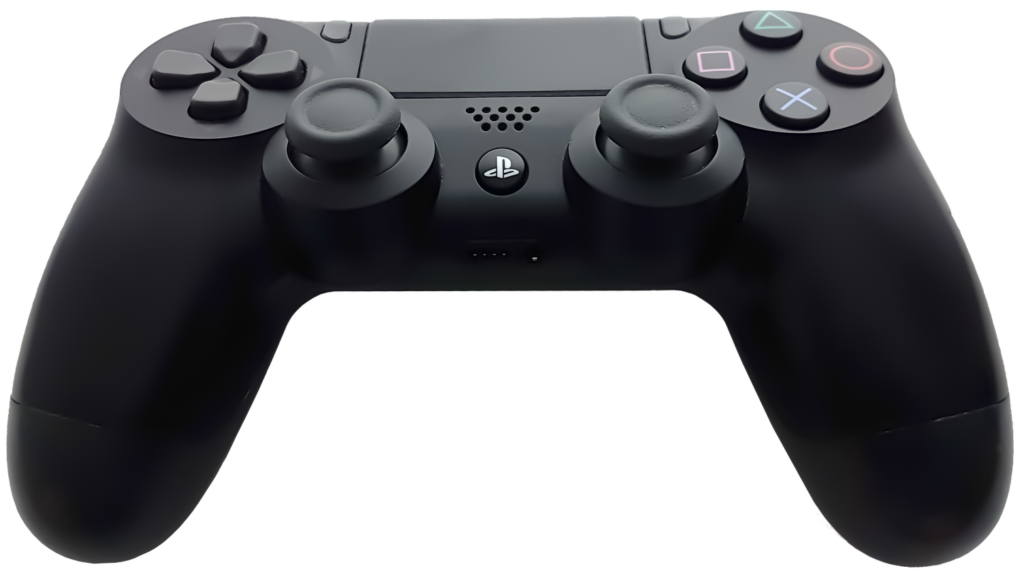
Recognizing the Signs: Stick Drift Symptoms
Sometimes drift is obvious, but often it starts as a subtle annoyance. If you notice any of the following stick drift symptoms, your hardware is likely failing:
- The Slow Creep: Your character walks slowly in one direction when you aren’t touching the thumbsticks.
- The Spinning Camera: In first-person shooters, the camera slowly tilts upward or spins in a circle.
- Menu Skipping: When you’re trying to select an item in a menu, the cursor skips over the one you want or moves on its own.
- Difficulty Staying Still: In games with “sniper breath” mechanics or precision platforming, you find it impossible to keep your aim perfectly still.
- The “Jerk” Effect: Everything seems fine, but occasionally your view will suddenly snap in one direction for a split second.
Does My Controller Have Drift? How to Detect It
If you suspect your controller is failing, you don’t have to rely on “feel.” There are several ways to confirm the issue scientifically.
1. The In-Game “Deadzone” Test
Load up a game with highly customizable settings (like Call of Duty, Apex Legends, or Fortnite).
- Go to Controller Settings and find the Deadzone slider.
- Turn the deadzone down to 0 or 0.01 (the most sensitive setting).
- If your character or camera moves even slightly, you have drift.
2. Using an Online Diagnostic Tool (Recommended)
The most accurate way to detect drift is to see the raw data. When you connect your controller to a PC and use a tool like our /stick-drift-test, you can see a visual map of your thumbsticks.
- A healthy controller will show a dot perfectly in the center of the grid.
- A drifting controller will show the dot flickering or “resting” outside the center circle.
- This tool shows you exactly which axis (X or Y) is failing.
3. Console Calibration Menus
- Nintendo Switch: Go to System Settings > Controllers and Sensors > Calibrate Control Sticks. If the crosshair doesn’t stay as a “+” in the center, you have Joy-Con drift.
- Xbox: Use the Xbox Accessories app on your console to test the “center” values of your sticks.
Why Is Stick Drift Becoming More Common?
You might feel like your old GameCube or PlayStation 2 controllers lasted forever, while your PS5 DualSense started drifting in six months. You aren’t imagining things.
Modern games require much higher precision. In the older days of gaming, “deadzones” were huge because games weren’t as sensitive. Today’s games are designed for 4K precision and millisecond response times. This means that even a 1% error in a sensor—which would have been invisible 20 years ago—is now a game-breaking problem.
Furthermore, as controllers have become more complex (adding haptic motors, touchpads, and speakers), the space inside for the analog stick modules has actually gotten smaller, leading to more compact, fragile designs.
Can You Prevent Stick Drift?
While you can’t stop physics (friction always wins), you can certainly delay the onset of drift:
- Keep it Clean: Regularly use a can of compressed air to blow out the base of the thumbsticks. This prevents dust from settling on the sensors.
- Wash Your Hands: It sounds simple, but keeping oils and sweat off the controller prevents those fluids from seeping into the internal electronics.
- Avoid “Clicking” at Angles: Pushing down on L3 or R3 (clicking the stick) while the stick is tilted at an extreme angle puts the most stress on the internal plastic housing. Try to click while the stick is more vertical when possible.
- Use a Case: If you throw your controller in a backpack, the sticks are being pushed and held in one direction for hours. This causes “spring fatigue.” Always use a hard-shell case for travel.
Summary Table: Stick Drift Cheat Sheet
| Feature | Details |
| Primary Cause | Wear on the potentiometer tracks or dust interference. |
| Common Symptom | Character or camera moves without input. |
| Most Affected | PS5 DualSense, Xbox Series X, Nintendo Switch Joy-Cons. |
| Best Detection | Using a Stick Drift Test for raw data. |
| Software Fix | Increasing “Deadzone” in game settings. |
| Hardware Fix | Cleaning with Isopropyl alcohol or replacing sensors. |
Final Thoughts
Stick drift is a frustrating part of modern gaming, but it isn’t always a death sentence for your controller. By understanding what causes stick drift, you can take better care of your gear and recognize the stick drift symptoms before they cost you a match.
If you’ve noticed your aim feels “off,” don’t wait for it to get worse. Knowledge is power—and in this case, knowledge is knowing exactly how much your sensor is off-center.